
Ready to transform your shower experience? Delta ShowerSense brings spa-like luxury and smart control to your daily routine. Whether you’re new to digital showers or just setting up your system, this guide will walk you through every step—complete with screenshots for easy reference.
Powering On & Presets
When you power on your Delta® ShowerSense™ digital interface, you’ll see your pinned presets if you’ve started or pinned them using the DFC@Home™ mobile app.
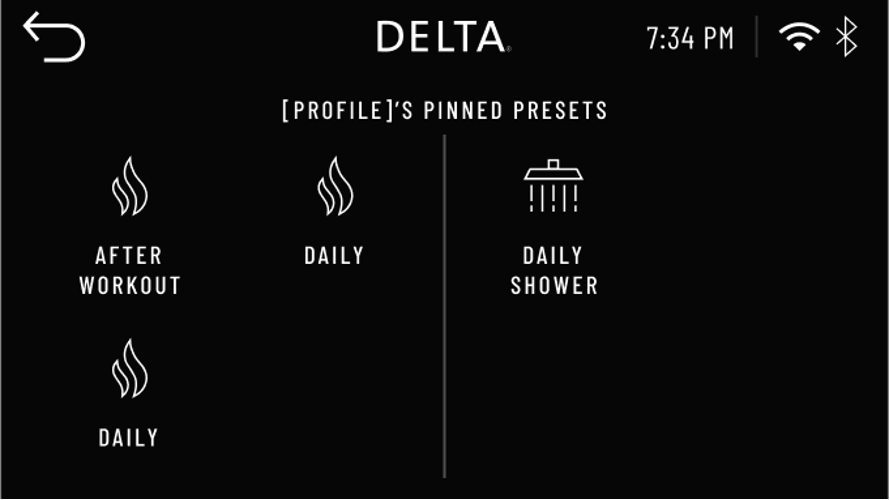
Presets let you save your favorite shower or steam settings for quick access—like ‘After Workout,’ ‘Daily,’ or ‘Daily Shower.’
Accessing Shower Settings
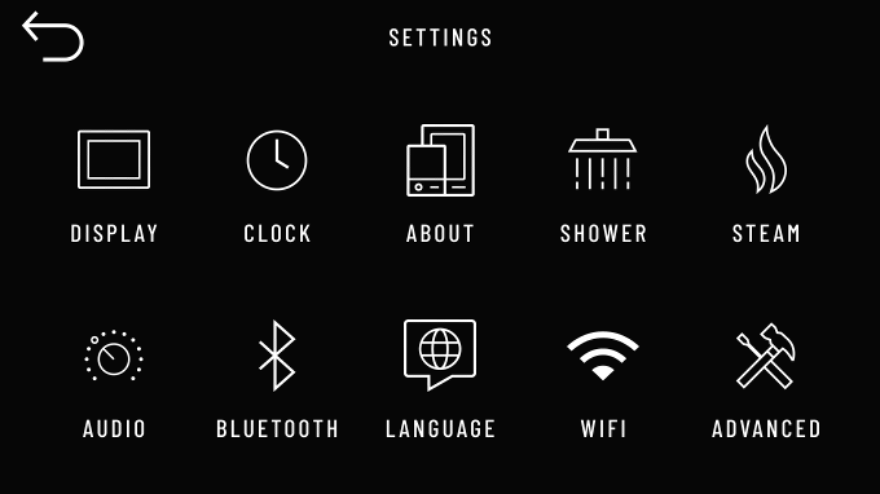
To customize your shower, tap the gear icon in the top-left corner. This opens the Settings menu, where you’ll find options for display, clock, shower, steam, audio, Bluetooth, language, WiFi, and advanced settings.
Entering Shower Settings
Tap ‘Shower’ to enter the shower settings menu.
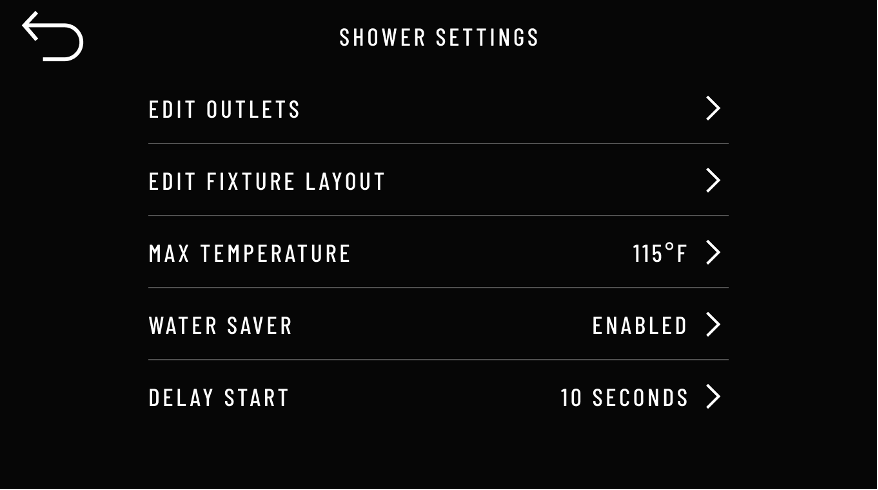
Here, you can: Edit Outlets, Edit Fixture Layout, Set Max Temperature, enable Water Saver, and set Delay Start.
Configuring Outlets & Fixtures
Editing Outlets
Tap ‘Edit Outlets’ to add or configure your shower fixtures.
Tap ‘Add Outlet’ to choose your fixture. Once selected, tap ‘Save and Calibrate.’
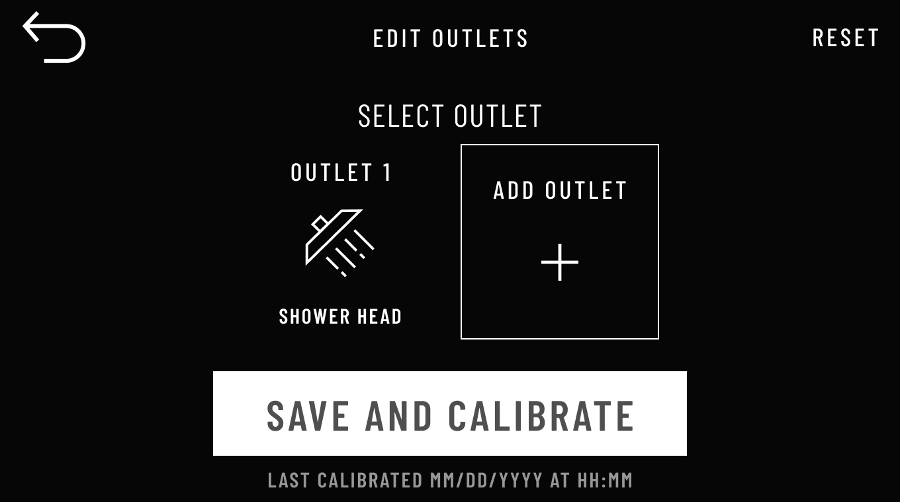
Editing Fixture Layout
Return to the Shower Settings Menu and tap ‘Edit Fixture Layout.’
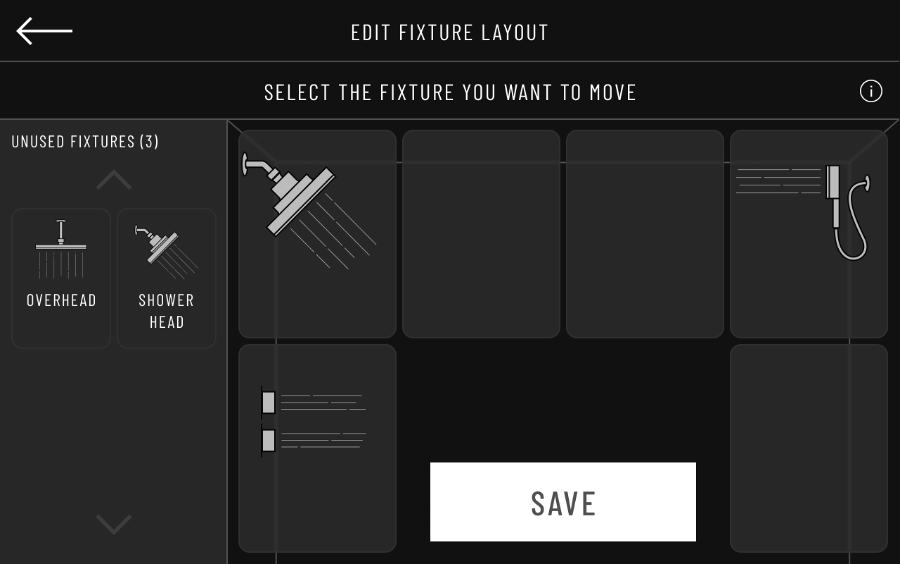
Select the fixture you want to move. Tap the square on the right to place it in the correct location within your shower layout. Tap ‘Save’ to confirm.
Managing your Steam Session
Delta® ShowerSense makes it easy to enjoy a steam shower.
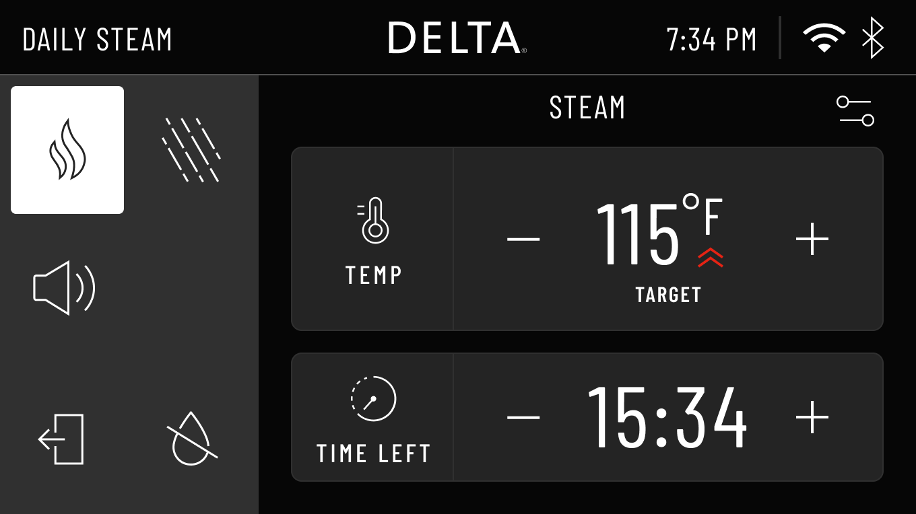
Tap the settings icon in the top right to set your steam temperature and adjust the remaining time.
Session Preferences
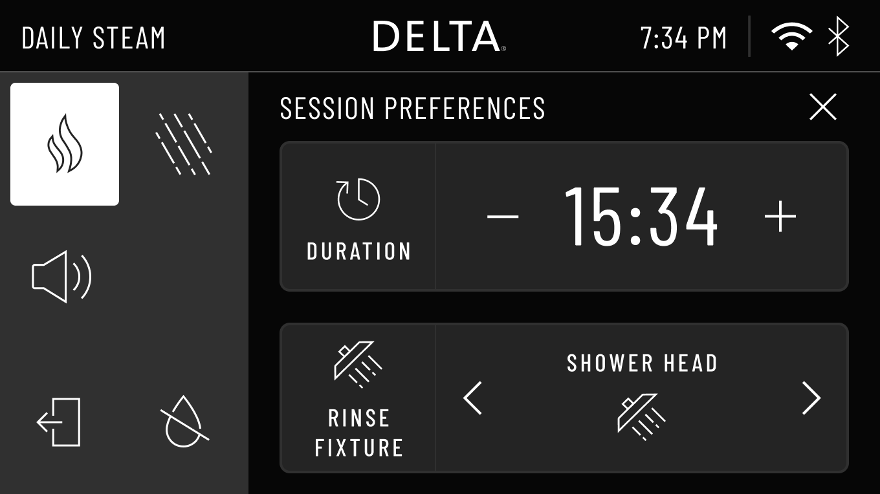
Adjust the duration to set your future steam cycle time. Select a rinse fixture to cool down during your steam bath.
Using the Rinse Feature
Tap the Rinse icon (next to the Steam icon) to adjust rinse settings.
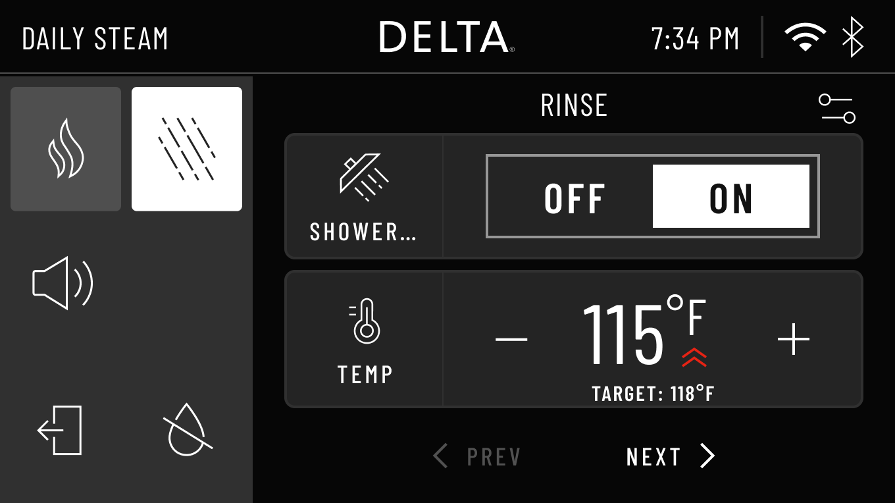
Turn rinse on or off. Adjust temperature and flow rate for your chosen outlet.
Managing Your Shower Session
During a shower session, you’ll see all active outlets.
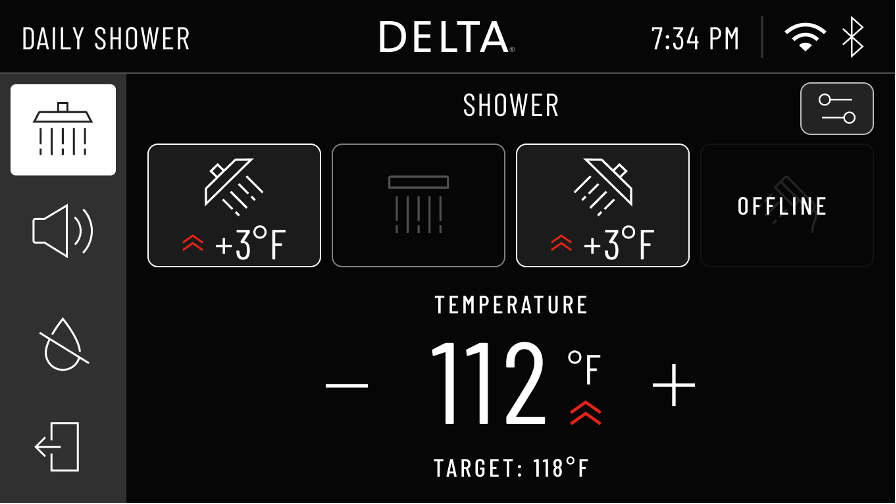
Tap any active shower icon to toggle it on or off. Press and hold any icon to adjust flow or temperature independently.
Session Preferences
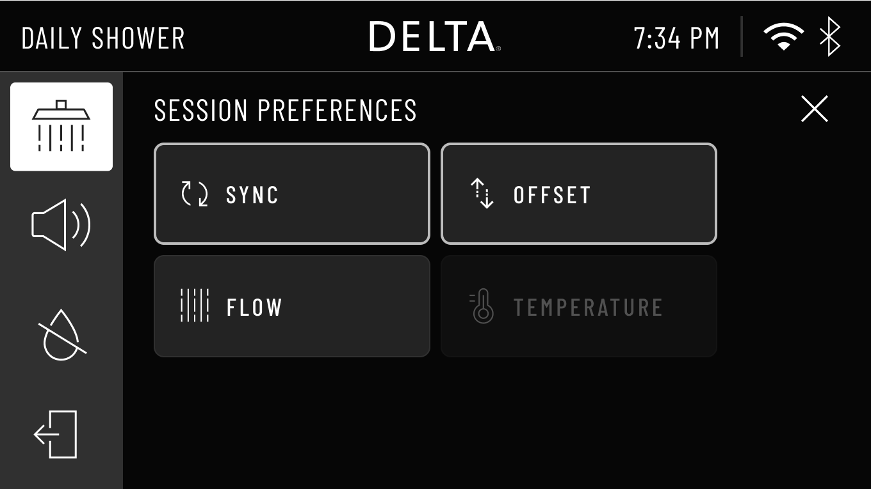
Tap ‘Offset’ to set different temperatures and flow rates for each outlet. Use ‘Sync’ to synchronize all outlets. Tap ‘Reset All’ to return to uniform settings.
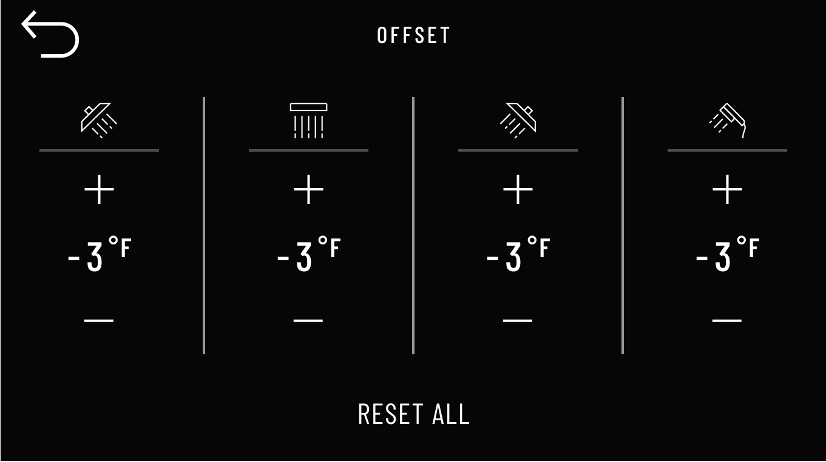
Offsets are perfect for fixtures that run colder, like high ceiling shower heads—just bump up the temperature for that outlet!